Every core process at my property management company runs through LeadSimple: move-ins, move-outs, new owners, and lease renewals. It's the backbone of a lot of the work that lets me take a month off every year. It had been a long time since I'd built a process from scratch, and LeadSimple has added a lot recently, including an AI-assisted process builder. So I rebuilt our lease renewal process live, with only about 5 minutes of prep.
You'll see the AI get a few things wrong, and you'll see me fix them. That's the useful part. By the end, the process emails the resident, routes them based on their answer, gets owner approval, sends the renewal for e-signature, and starts itself automatically 90 days before a lease expires.
This course is a follow-along build. Open LeadSimple in another tab and work through it with me. We manage about 700 doors in Columbus, Ohio, on Buildium, but LeadSimple integrates with the major PM platforms, including AppFolio, Rentvine, and Rent Manager, so it should work much the same for you.
What you'll learn
- Describe your lease renewal process in plain language and have LeadSimple's AI turn it into stages and steps
- Set up completion and cancel stages so you can report on your renewal rate
- Generate tenant emails with AI and route residents between stages automatically based on their answers
- Require custom fields, add step instructions, and connect LeadSimple's e-signature to the renewal
- Test the process, then set autopilot rules that start it 90 days before each lease ends
Note
If you're new to process work, start with my free course on systematizing your core processes. This course is the hands-on build that one points to.
New courses land on YouTube first. Subscribe
Create the process
Key takeaway
Create a new process, name it, and let LeadSimple's guided setup start the workflow for you.
- Go to Processes and click Create new.
- Name it. I called mine "PL demo lease renewal." You can ignore the item name field for now.
- Check the category. LeadSimple now recognizes the common processes property managers build, and it auto-selected the lease renewal category (probably because I typed "lease renewal").
- Click Set up workflow (instead of creating without a guide).
- Choose Set up with a guide. The other option is to describe it in chat.
Describe your process in plain language
Key takeaway
Type out how your lease renewal works, messy is fine, and LeadSimple's AI uses it to draft the process. Your description is the blueprint, so make it complete.
The guided setup takes whatever you have: pasted checklists, meeting notes, or attached documents. Messy is fine. We already have a lease renewal process, but I typed a fresh description to see how well this works. Being able to type out what you want, instead of manually building every stage and step, is a big change.
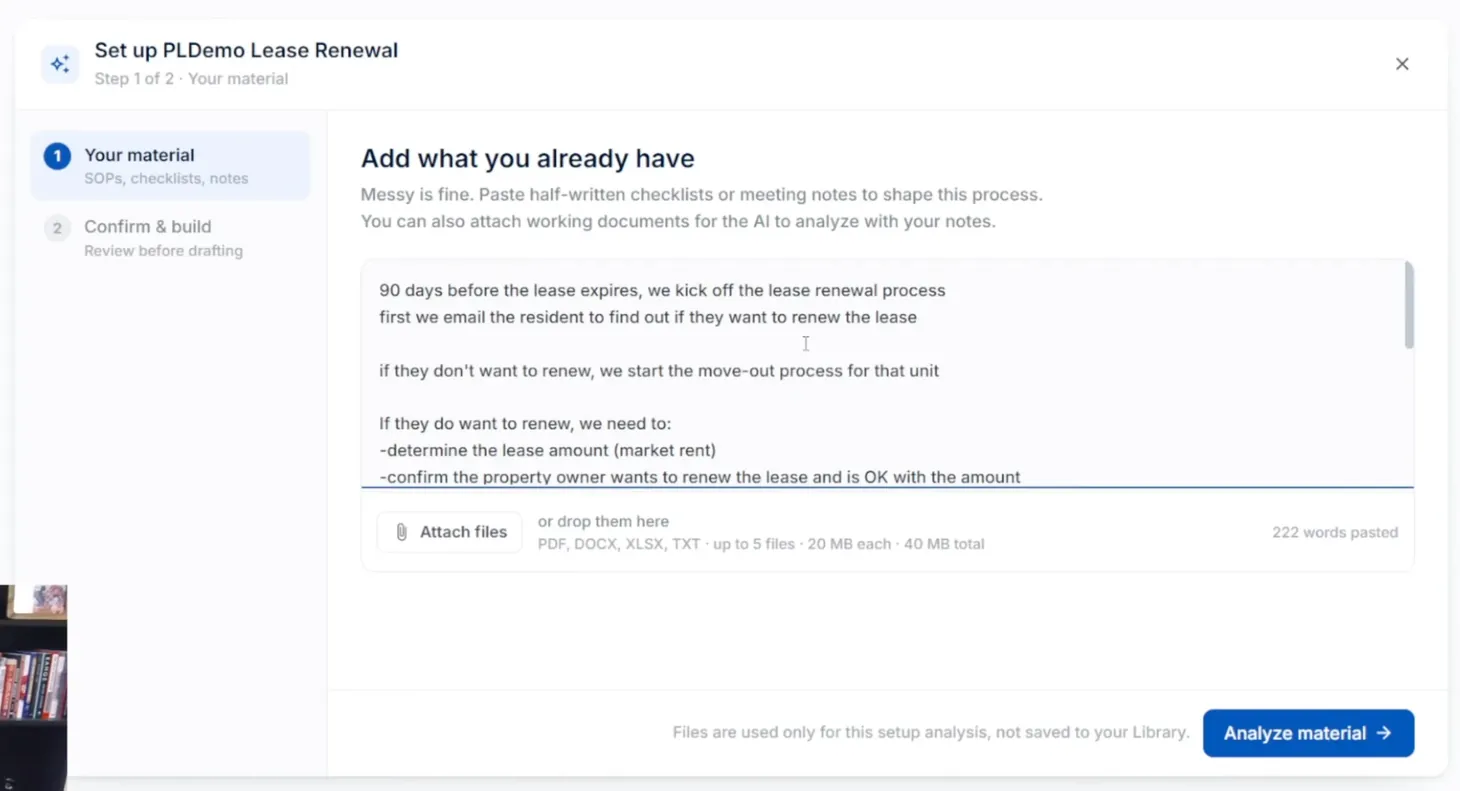
My lease renewal process, as I described it
- Start 90 days before the lease expires. That's when we first contact the tenant.
- Email the resident to find out if they want to renew.
- If they don't want to renew, start the move-out process for that unit.
- If they do, determine the renewal rent with a market rent analysis.
- Confirm the property owner wants to renew and is okay with the amount. Most owners want to know before we extend a renewal, because they may want to sell or move into the property.
- If the owner approves, email the resident a renewal offer.
- If the resident accepts, send the lease renewal for e-signature.
- If they decline or counter, work with the owner and tenant on price until everyone agrees, then send for e-signature.
- If all tenants want to go month-to-month and the owner agrees, move to a month-to-month stage.
- Once the tenant signs, we countersign. Then we send the renewal to all parties, including the owner.
- Upload it to Buildium and Dropbox.
- Update the Buildium lease terms with the new rent and any other changed terms, like the lease end date.
- Charge the owner our lease renewal fee in Buildium.
- For month-to-month, update the Buildium lease terms with the new rent and any other changed terms.
Most lease renewal processes look something like this.
Analyze and map roles
- Click Analyze material. The AI turns your description into a draft process.
- Map the roles it found to roles already in your system. Mine matched leasing assistant, leasing lead, and property manager.
- Review the setup summary it will use to draft stages and steps. You can go back and change any answer here.
Let the AI build stages and steps
Key takeaway
Click Build workflow and accept the AI's stages first. Let it build everything before you start editing, and fix anything it can't connect by hand.
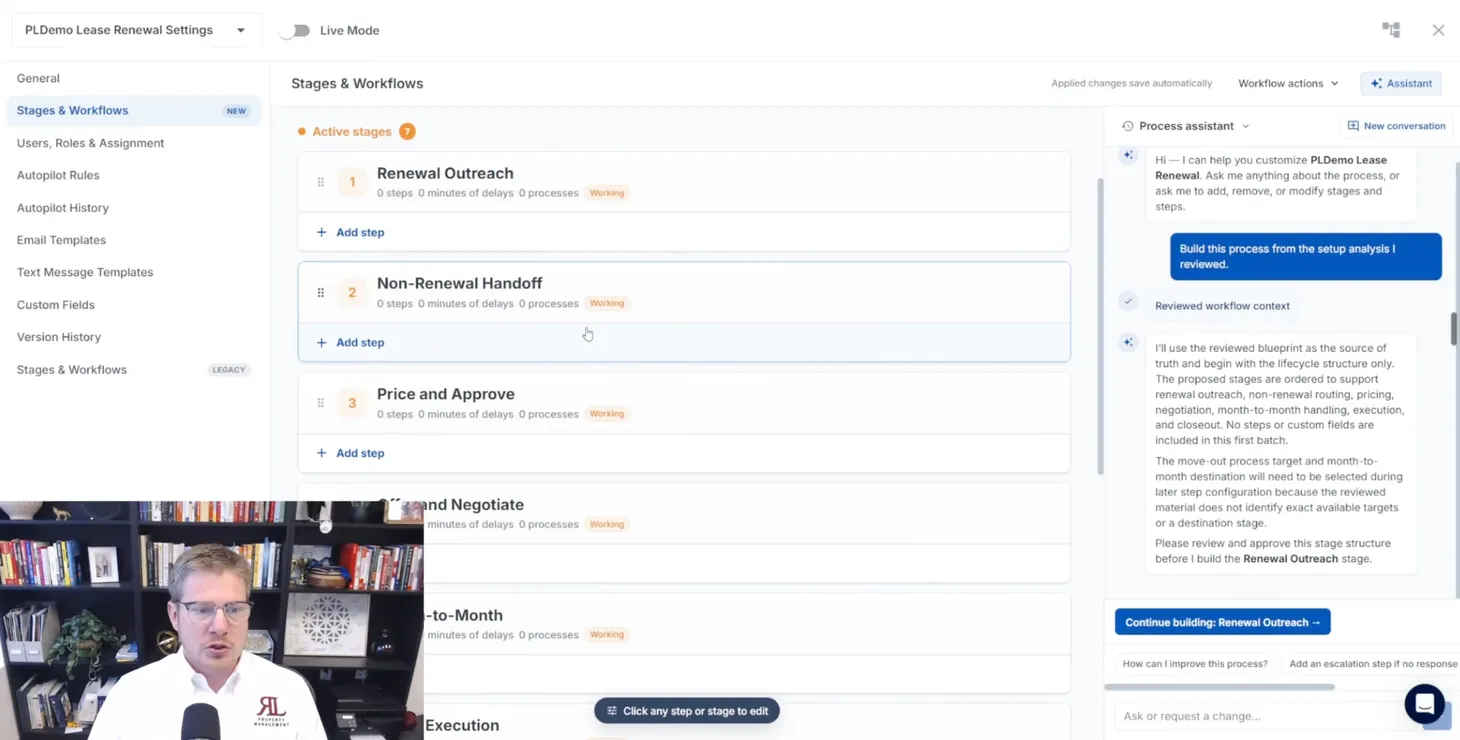
- Click Build workflow. You land in the process's stages and workflows settings, with the AI process assistant on the right (you can open and close it).
- Accept the stages. In LeadSimple, a stage is a major milestone in the process. Mine came back as: renewal outreach, non-renewal handoff, price and approve, offer and negotiate, month-to-month, lease execution, and records and closeout.
- Let it build each stage's steps. For renewal outreach, it proposed fields and steps; I clicked accept remaining, and it built "confirm lease expiry," "ask renewal intent," and "record resident choice," along with custom fields and an email. Then it moved on to the next stage.
- Keep accepting until it finishes, then go back through it one stage at a time. I wanted to see how fast it could build the whole thing before I changed anything.
When the AI gets stuck
On the non-renewal handoff stage, the AI asked which existing process to start for move-outs. It wouldn't guess. I told it our move-out process ("Reorg lease ending process," in our account), and it still came back "not found."
So I declined its proposal and added the step manually:
- Click Add step in the non-renewal handoff stage.
- Choose Create process as the step type.
- Set the target process to your move-out (lease ending) process.
That step would normally be automatic. While building, I left it on manual, so a process accidentally moved into that stage doesn't start a real move-out. Once the process is live, I'd switch it to automatic. The automatic/manual switch sits right on each step.
The AI handled price and approve well. It correctly made "obtain owner approval" a phone call, because that really should be a phone call to the owner.
Tour the new editor and add completion stages
Key takeaway
Add separate completed and canceled stages for each outcome. The stage names become your renewal-rate report.
The new editor
The editor you're seeing is LeadSimple's new process editor. If you're used to the old one, it's still there as "stages and workflow (legacy)," and the two views stay in sync as you switch back and forth. The new view puts everything on one screen, so you aren't clicking between stages and you get a more cohesive view of the whole process. There's also a View diagram button that maps how your stages connect (more on that once they're linked).
Add outcome stages
The AI didn't create completed stages, so I added them, one per outcome:
| Stage type | Stage name | When it's used |
|---|---|---|
| Completed | Completed: lease renewed | The tenant renewed |
| Completed | Completed: month-to-month | The tenant went month-to-month |
| Canceled | Canceled: tenant is vacating | The tenant isn't renewing ("is vacating," because they may not have moved out yet) |
| Canceled | Canceled: other | Anything else, such as a property being demanaged mid-renewal |
With a separate stage for each outcome, you can run reports and export data on this process and see what happened at a glance, just from the stage names. That makes it easy to analyze your lease renewal rate.
I first had "tenant is vacating" as a completed stage, then moved it under canceled. You could argue it either way.
You could also treat renewal outreach as a backlog stage, since nothing has really started yet. I left it as is.
Review steps and write emails with AI
Key takeaway
Check each step the AI built, and use Generate with AI for tenant emails. It writes the email and the merge tags in seconds.
Go back to the first stage and check each step:
- Confirm lease expiration. It populates a custom field with the lease expiration date. Good.
- Ask renewal intent. This is an email step, and it had an exclamation point because there was no email template yet. I clicked Generate with AI, and it wrote a renewal-intent email asking the resident to reply with one of three options: renew my lease, move out at the end of my lease, or I'm interested in discussing other options. It even filled in the mail merge tags. That probably saved me 10 minutes. This would normally be automatic, but I left it manual so I wouldn't accidentally email a tenant.
- Record resident choice.
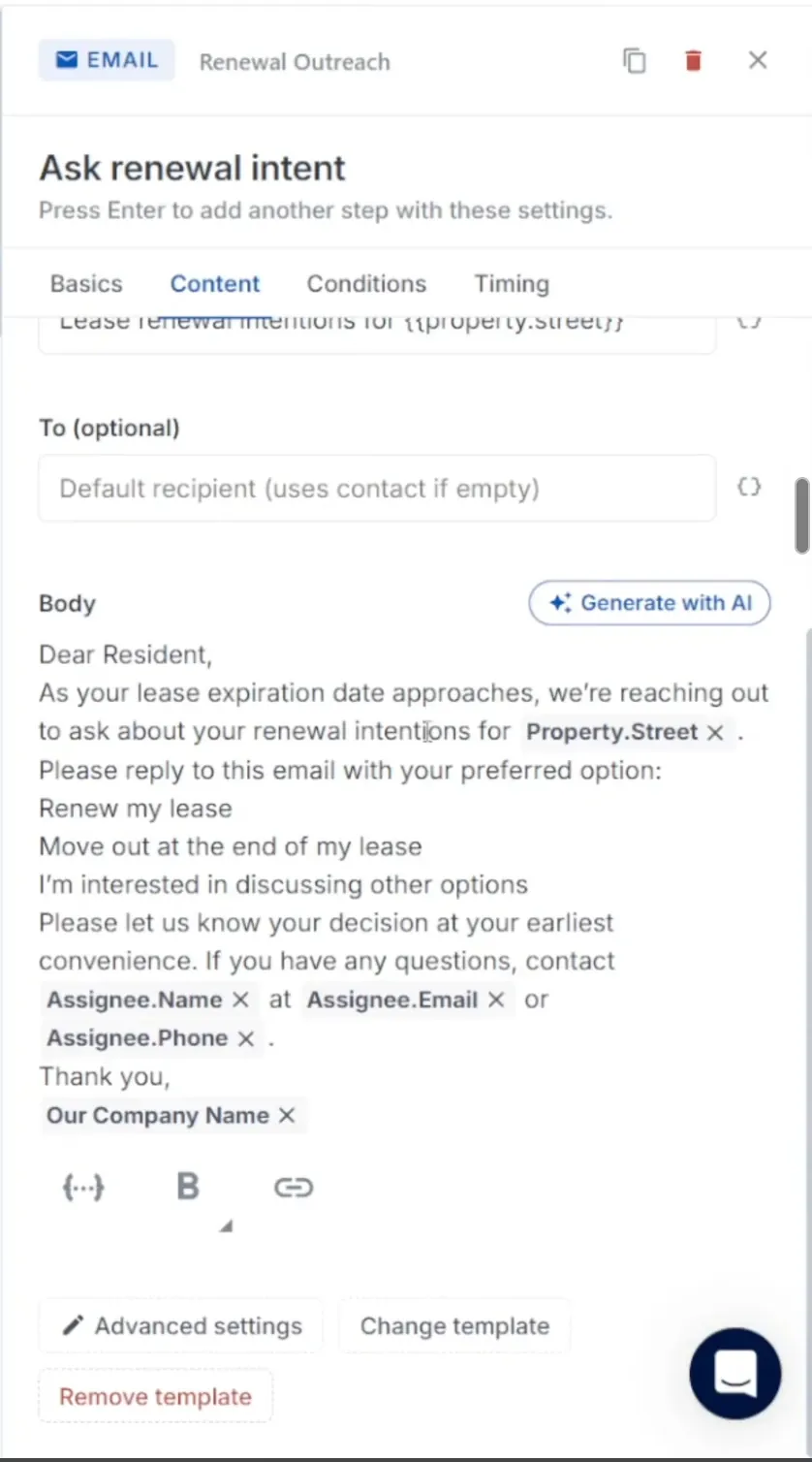
Custom fields it created
The AI created these process-specific custom fields, all appropriate for a lease renewal:
- New rental rate
- Lease signing date
- Tenant renewal choice
- Owner renewal approval
- Owner month-to-month approval
- Lease expiration date
- Market rent
- Resident offer response (accepted, declined, or counter offer)
Route stages automatically
Key takeaway
Tell the AI assistant the condition and the destination stage in plain English, and it adds an automatic change-stage step for you.
The process needs to move residents to the right stage based on their answer. I told the AI assistant: "For the renewal outreach stage, if the resident says they do not want to renew (that's the tenant renewal choice custom field), we should automatically move to the non-renewal handoff stage."
It proposed a step to route non-renewals to the handoff stage automatically. I accepted, and it added a change stage step pointing to non-renewal handoff. In the workflow diagram, that connection now shows up between the two stages.
Then I did the same for renewals: if the resident says they want to renew, automatically move to the price and approve stage. Accept, turn on automatic, done. This is so much faster than building processes used to be.
Who's assigned
The AI assigned the first steps to the leasing assistant and others to the process owner (so nothing gets stuck). You can change any step's assignee to a specific person or a role.
Price, offer, and e-signature
Key takeaway
Require the renewal rent before anyone can move on, route accepted offers straight to lease execution, and point the e-signature step at your renewal template.
Price and approve
The AI built three steps:
- Determine market rent. A manual step, plus a field to record market rent, shown only if the resident is renewing.
- Obtain owner approval. A phone call to the rental owner.
- Set renewal rent. Fills in the new rental rate custom field.
That last one uses a newer feature: you can require a custom field before someone can complete the step. In the old LeadSimple, you could only ask for it in the step's description.
Where do the instructions go? I couldn't find the step instructions field at first. It turns out required-field steps don't have step instructions; the step just forces the update. A normal to-do step does have step instructions, and in the new view they show up as the step's content.
To finish the stage, I added a step manually: Add step, choose Change stage, set it to offer and negotiate, and make it automatic. There's no reason not to.
Offer and negotiate
- Send the renewal offer email. I had the AI write this one too.
- Record offer response. The resident offer response field has three options: accepted, declined, or counter offer.
- Negotiate renewal terms. This step only appears if the response is declined or counter offer.
What was missing was a route for accepted offers. I told the AI: "If the resident offer response is accepted, in the offer and negotiate stage, automatically move to the lease execution stage." It added the change-stage step faster than I could have.
Lease execution and e-signature
The send renewal for signature step uses the e-signature step type, but it showed an exclamation point. Hovering showed why: it needed a template. I selected our lease template. In practice, you'd then set up the mail merge tags.
LeadSimple recently launched its own e-signature tool, so you don't need Adobe Sign or anything else. It's under Signatures in the left menu:
- Open Templates and pick a template (we use it extensively for our property management agreement, and we've been testing it with our lease).
- Open the source PDF to see your document.
- Click Builder to place fields, like initials for every signer and signature blocks, much like Adobe.
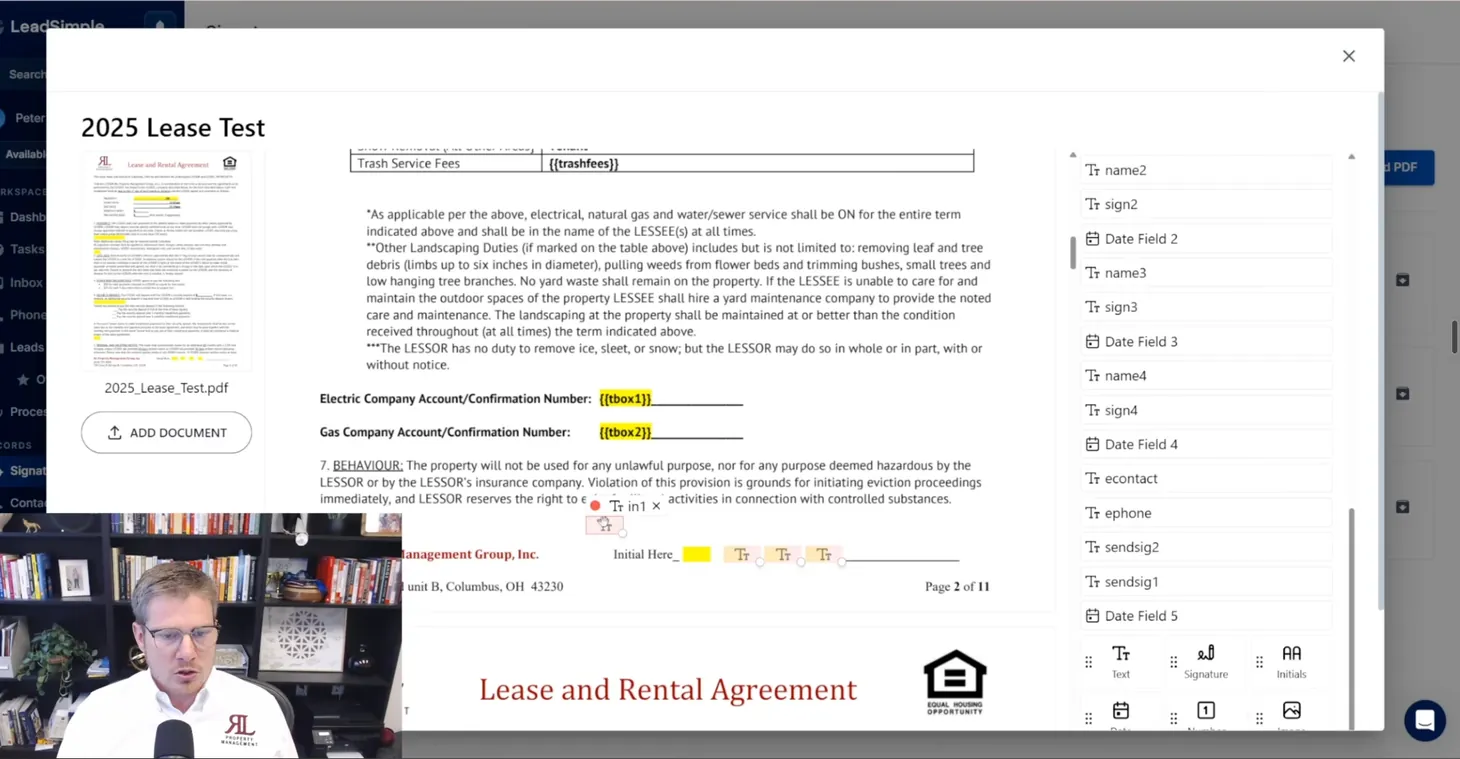
Our lease is weird and complicated, so we haven't moved it into LeadSimple's e-signature yet. It's on the roadmap.
The AI also added confirm resident signature and countersign renewal. Countersigning is probably part of the e-signature flow, but I left it in as a check and reordered the steps. Then I added a change stage to records and closeout.
Close out and connect month-to-month
Key takeaway
End each path in the right completed stage, and check the workflow diagram for paths you missed. I found I'd never routed month-to-month.
Records and closeout
- Distribute executed lease. We don't actually email the lease. We notify the owner by email without attaching it.
- Archive renewal documents.
- Update Buildium lease terms.
- Change stage to "Completed: lease renewed," set to automatic.
You can add steps inside completion stages too, like emailing the owner once the renewal is done.
The month-to-month path I missed
Reviewing the stages, I realized there was no route into month-to-month. The fastest fix was to duplicate the existing renewal routing step (which already had the right logic) in renewal outreach, rename it "route confirmed month-to-month," and point it to the month-to-month stage.
Inside month-to-month, the steps were: obtain month-to-month approval from the owner, record month-to-month, then a change stage that pointed to month-to-month itself. That doesn't make sense, since we're already there, so I pointed it to Completed: month-to-month.
Check the diagram
With the stages linked, View diagram shows the whole flow: renewal outreach branches to non-renewal handoff, month-to-month, or the full renewal path, and the canceled stages sit off on their own, which makes sense.
Test the process
Key takeaway
Run a test process before going live. Click through each stage to make sure the steps, required fields, and emails show up the way you expect.
- Exit the builder and click Test process.
- Pick a due date and start the test.
- Fill in what it asks for. The first step required the lease expiration date. With a little extra setup, this could pull from Buildium, but I entered it manually.
- Check the email steps. My email account needed reconnecting, so it wouldn't let me send, but the step was there.
- Click through every stage. It shows the first step in each one. At the end, there's a completion animation.
- End the test.
Turn on autopilot
Key takeaway
Autopilot starts the process for you. Run it weekly, start anyone whose lease ends in under 91 days, and exclude tenants already in evictions, collections, or other conflicting processes.
Autopilot is a set of rules that starts a process automatically. For lease renewals, we want it to start about 90 days before the lease ends, without anyone looking up move-out dates every week, and even send the first resident email before a human touches it.
Go to the process settings and open Autopilot rules. (While the process is in draft, autopilot can't be turned on, which is what you want while building.) LeadSimple now has default autopilot templates for common processes like delinquency, move-in, move-out, and lease renewal. Click Use this template on lease renewal and set it up:
- How often: weekly, at 6 a.m. I like weekly better than daily so the team gets into a flow.
- Start stage: renewal outreach.
- Conditions:
- Lease end date is less than 91 days in the future (I use less than 91 instead of equal to 90 so it catches all of them)
- Active in PM software is true
- Current lease move-out date is empty
- Exclusions: don't start it for anyone already in:
- Eviction
- Delinquency
- The lease renewal process itself
- A lease break
- Lease ending
- Property de-management
- Collections
- A cure
- Save.
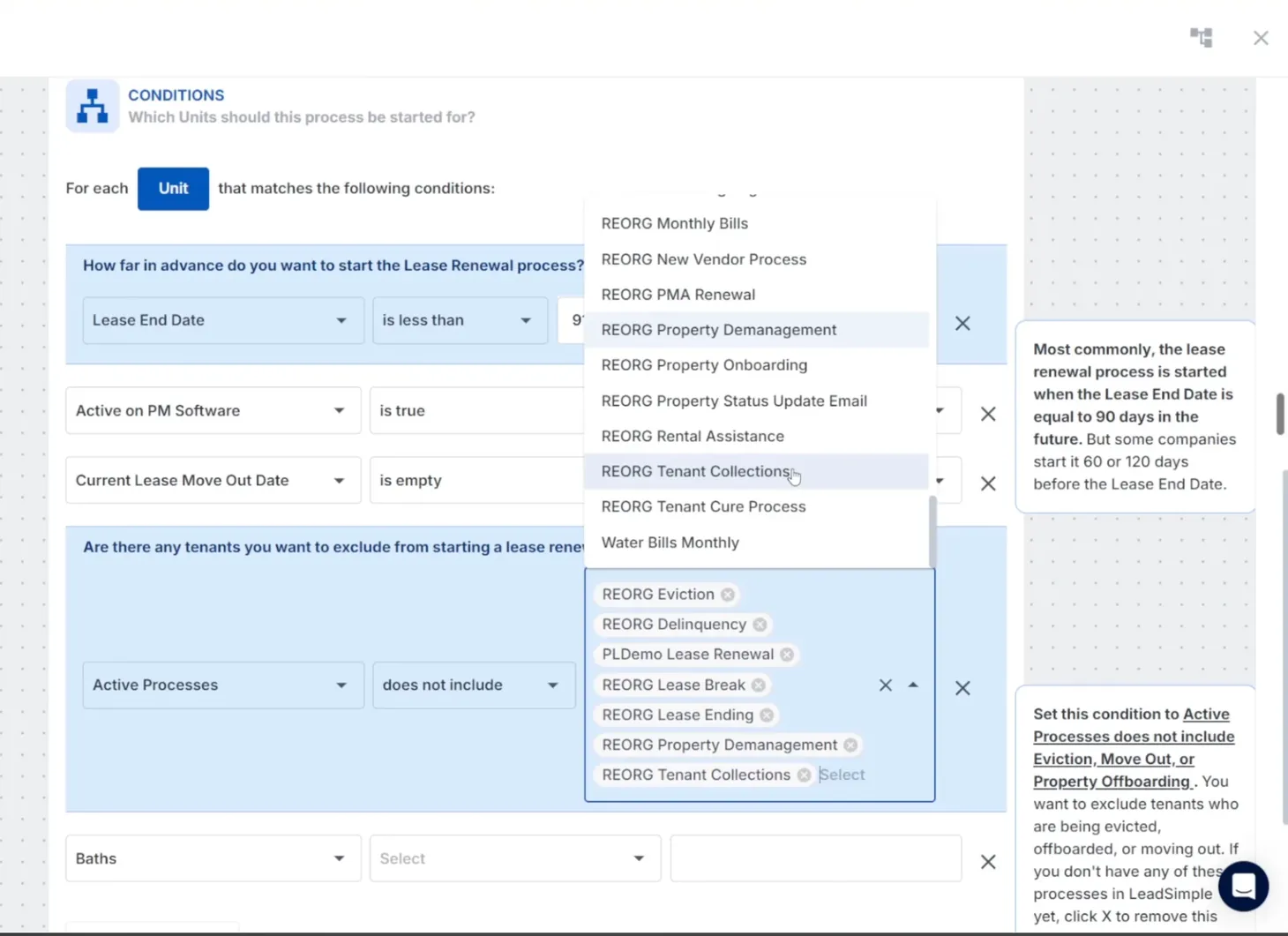
I didn't turn this demo's autopilot on, since it would duplicate our real lease renewal process.
Check autopilot history
On our live lease renewal process, the History tab shows the last 30 days of autopilot runs and which processes it created. The day I recorded was a Monday, and it had run at 6:00 a.m. and created four lease renewal processes for four properties that matched the rules.
There are a million more settings and customizations, and you can automate far more through the PM software integration. This gives you a solid starting point for automating lease renewals.
Resources mentioned
- LeadSimple: the workflow tool that runs every process at my company.
- How to Systematize Your Property Management Processes: my free course on the method behind this build.
- Buildium: our property management software.